
Let’s be honest. Walking down the greeting card aisle at the store feels a bit uninspiring these days. Row after row of generic snowmen and high prices make you wonder if it’s really worth it. This year, why not skip the crowded aisles and learn how to design Christmas cards with Leonardo.ai for free? It is the perfect way to create something genuinely personal instead of settling for store-bought options.
If you’ve been searching for the best AI art generator for cards, you’ve probably stumbled across a few options. Bing’s image creator works fine for basic stuff, sure. But when it comes to capturing that magical Christmas aesthetic—think delicate watercolors, intricate paper cutouts, or elegant metallic finishes—Leonardo.ai absolutely shines. It’s specifically built for artistic styles that feel handcrafted and special, which is exactly what you want when you design Christmas cards with Leonardo.ai.
The best part? You don’t need any design skills, fancy software subscriptions, or even a credit card. Leonardo.ai offers free credits every day, and paired with Canva’s free tools, you can create stunning DIY AI holiday cards that’ll make your friends ask where you bought them.
The Simple 3-Step Process to Design Christmas Cards with Leonardo.ai
Step 1: Generate Your Art with Leonardo.ai
Head over to Leonardo.ai and sign up for a free account if you haven’t already. You’ll get daily credits that refresh automatically, which is more than enough for a handful of beautiful card designs.
Now, here’s where the magic happens. Instead of wrestling with complex prompts or ending up with weird AI fingers and distorted faces, we’re going to keep things simple and foolproof. The secret? Avoid human figures entirely. Landscapes, objects, and abstract designs come out flawlessly every time.
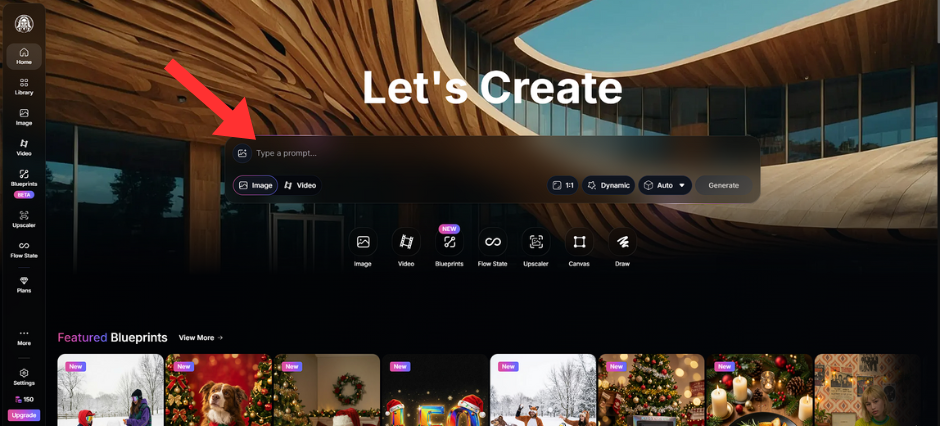
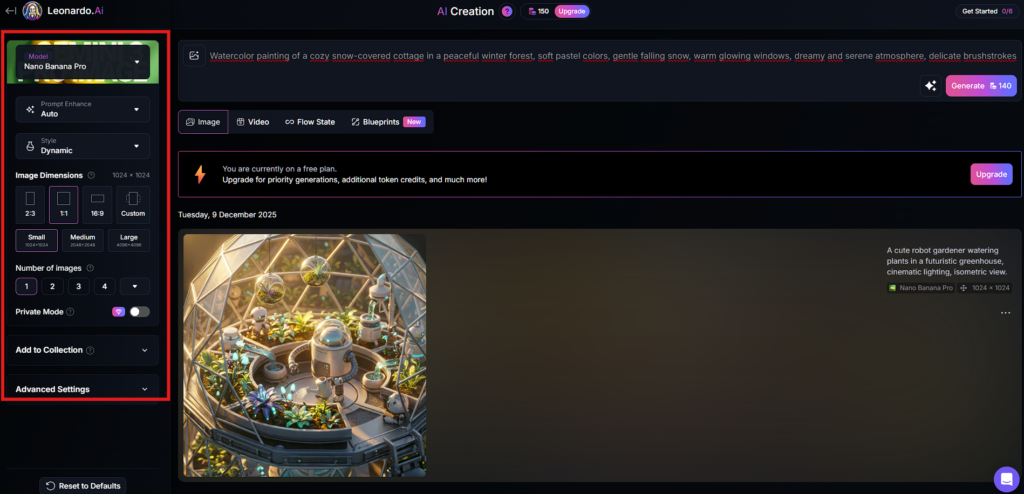
Let me share three aesthetic Christmas card prompts you can literally copy and paste:
Style 1: Watercolor Magic
Paste this into Leonardo.ai:
Watercolor painting of a cozy snow-covered cottage in a peaceful winter forest, soft pastel colors, gentle falling snow, warm glowing windows, dreamy and serene atmosphere, delicate brushstrokes
This creates that soft, handmade watercolor feel that’s impossible to find in store-bought cards. The kind of image that feels like it belongs in a children’s storybook or framed on a wall.
Style 2: Paper Cutout Charm
Try this prompt:
Layered paper art illustration of a reindeer silhouette standing in a snowy pine forest, multiple paper layers with shadows, dimensional depth, cut paper style, festive and whimsical, rich textures
Paper cutout designs have this incredible three-dimensional quality that photographs beautifully. They look sophisticated and handcrafted—perfect if you want something a bit different from the usual Christmas imagery.
Style 3: Elegant Gold Accents
Use this one:
Elegant Christmas ornaments and snowflakes in gold metallic on black background, luxurious and minimalist, delicate golden details, sophisticated holiday design, high contrast
This style is for anyone who loves that modern, classy aesthetic. Black and gold never goes out of style, and it works beautifully for both printed cards and digital versions sent via email or messaging apps.
Once you’ve pasted your chosen prompt, hit generate and watch Leonardo.ai work its magic. You’ll typically get four variations to choose from. Pick your favorite, download it in high resolution, and you’re ready for step two.
Step 2: Add Your Message in Canva
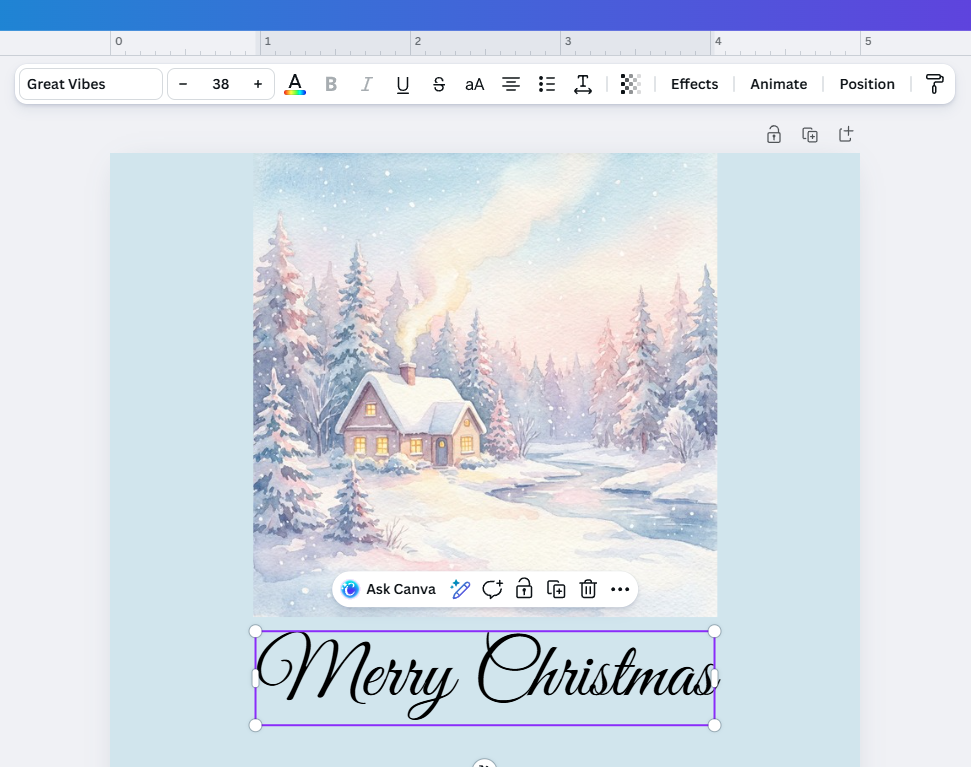
Now that you have your gorgeous AI-generated artwork, it’s time to turn it into an actual card. Head to Canva.com (again, completely free) and create a new design. You can search for “greeting card” templates or just create a custom size that works for your needs. Canva is incredibly user-friendly, but if you want to master its features, take a look at our detailed Canva review.
Upload the image you downloaded from Leonardo.ai as your background. Then comes the fun part—adding your personal touch. You can keep it simple with “Merry Christmas” in an elegant font, or get more personal with something like “Wishing you warmth and joy this holiday season, love from the Johnsons.”
Canva gives you access to thousands of free fonts, so experiment until you find one that matches the vibe of your image. For watercolor styles, handwritten fonts work beautifully. For the gold-on-black design, try something clean and modern. The paper cutout style pairs wonderfully with playful, rounded fonts.
Don’t overthink this part. Sometimes the simplest messages hit the hardest. A heartfelt sentence or two is infinitely more meaningful than a pre-written verse from a store-bought card.
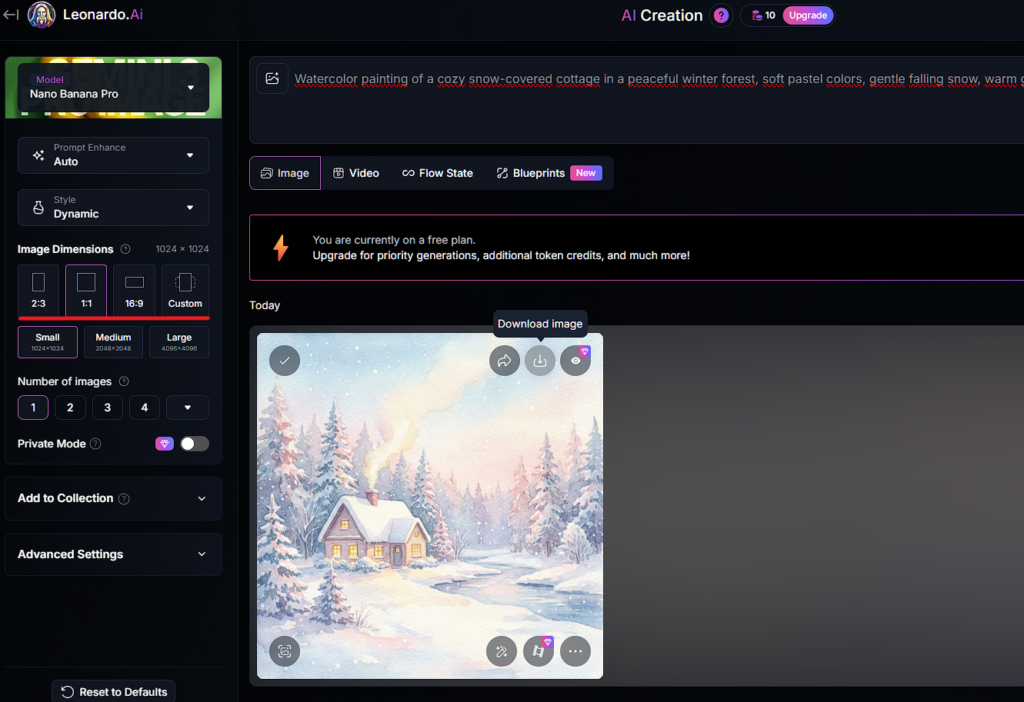
Pro Tip: Don’t Stick to Square! By default, Leonardo.ai might generate square images, but you can change this easily. On the left sidebar, look for Image Dimensions:
Select 9:16 (Portrait): Ideal for Instagram Stories and phone screens.
Select 3:4 (Portrait): Best for standard 5″x7″ printable cards.
Select 16:9 (Landscape): Perfect for traditional folded cards or desktop wallpapers.
Step 3: Print or Send Digital
Here’s where you decide how to deliver your creation. If you’re tech-savvy and most of your friends and family are active online, digital cards work perfectly. Download your finished design from Canva as a high-quality JPG or PNG and send it via WhatsApp, email, or social media. It’s instant, eco-friendly, and free.
But if you love the feeling of a physical card, you’re looking at free printable Christmas cards that you can produce at home. Use good quality cardstock if you have it—it makes a massive difference in how premium your cards feel. Most home printers handle this just fine. Cut them to size, maybe add a colored envelope, and you’ve got something that looks store-bought but feels infinitely more personal.
You could even print a few extras to keep on hand for last-minute gift additions or unexpected holiday visitors.
Why This Method Works
What makes this approach special isn’t just that it’s free and easy. It’s that you’re creating something genuinely unique. No one else will have the exact same card. You’re not contributing to the pile of identical designs everyone receives. When someone opens your card, they’ll immediately notice it’s different—and when they learn you designed it yourself using AI, that’s a conversation starter.
Leonardo.ai handles the artistic heavy lifting with its specialized algorithms for aesthetic styles. Canva gives you the personalization tools. Together, they let you produce professional-quality DIY holiday cards without any learning curve.
This year, your gift isn’t just an object someone unwraps. It’s your creativity, your effort, and your personal touch delivered in a beautiful package. And honestly? That’s what the holidays are supposed to be about anyway.
So skip the card aisle. Open your laptop instead. Your most memorable Christmas cards are just three simple steps away.
Once the holidays are over, you might want to start planning for the new year. Check out our guide on how to create a 2026 vision board using AI to get a head start.
Happy holidays, and happy creating!